3DQuads
Blender 4.5+ Extension

3DQuads Print Ready
3D Print Preparation
Done Right

The complete pipeline that takes your Blender model from raw mesh to printer-ready export — step by step, without leaving Blender.

See All Features View Documentation
13+ Printer Presets
7 Guided Steps
0 External Dependencies
Blender 4.5+ Ready
Print Ready panel overview
The Problem

3D printing from Blender is painful

Every experienced maker knows the frustration. 3DQuads Print Ready solves it all in one place.

⚙️

No Printer Awareness

Blender knows nothing about your printer. You manually look up build volumes, wall thicknesses, and nozzle sizes every time.

📐

Silent Scale Errors

Blender's default unit setup is wrong for printing. Models silently export at the wrong scale — discovered only after a failed print.

🔍

Hidden Mesh Problems

Non-manifold edges, flipped normals, and self-intersections are invisible in the viewport but cause slicer errors and print failures.

📦

Oversized Models

When your model is too big for the build plate, splitting it cleanly is a multi-step manual process with no alignment assistance.

The Solution

Seven steps. One extension. Every time.

3DQuads Print Ready walks you through a proven preparation checklist directly in the N-panel.

1
Printer Profile

Start With Your Printer, Not a Blank Slate

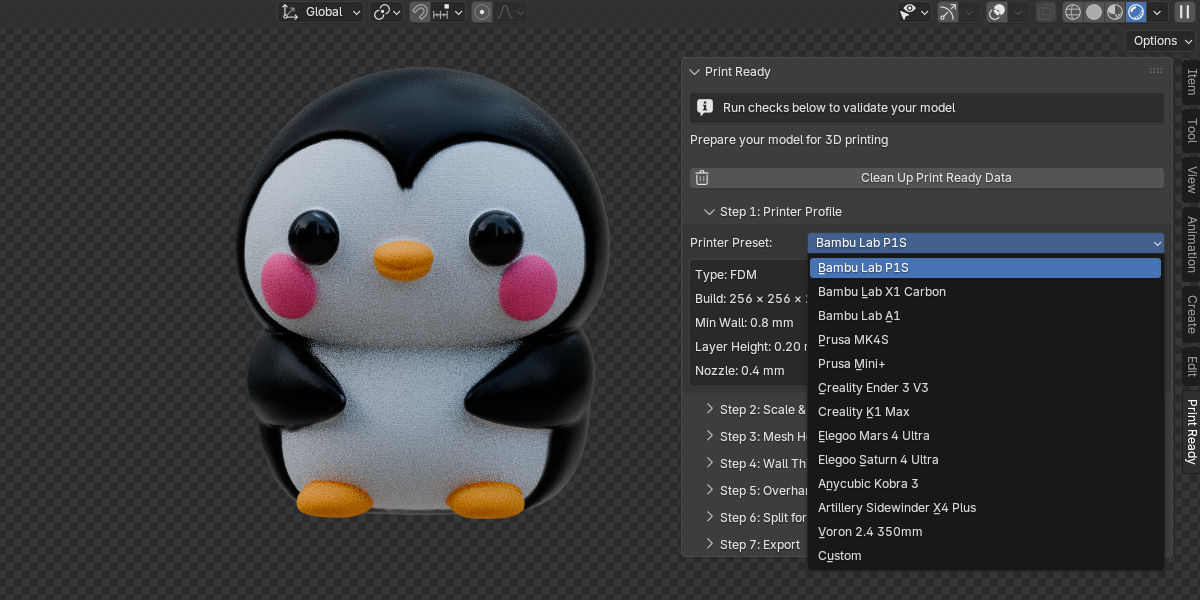
Select your printer from 13+ built-in presets — including the latest Bambu Lab, Prusa, Creality, Elegoo and more. Every spec auto-fills instantly: build volume, nozzle diameter, minimum wall thickness, and layer height. Or define a fully custom profile.

  • 13+ real printer presets including P1S, X1 Carbon, MK4S, Ender 3 V3, Mars 4 Ultra, Saturn 4 Ultra
  • FDM and Resin printer types both supported
  • Auto-fill everything — change the preset, all fields update instantly
  • Custom profile — enter any build volume and specs for unlisted printers
  • All downstream steps (wall thickness, split, export) use your printer's actual specs
Print Ready panel overview
2
Scale & Units

Fix Scale Errors Before They Ruin a Print

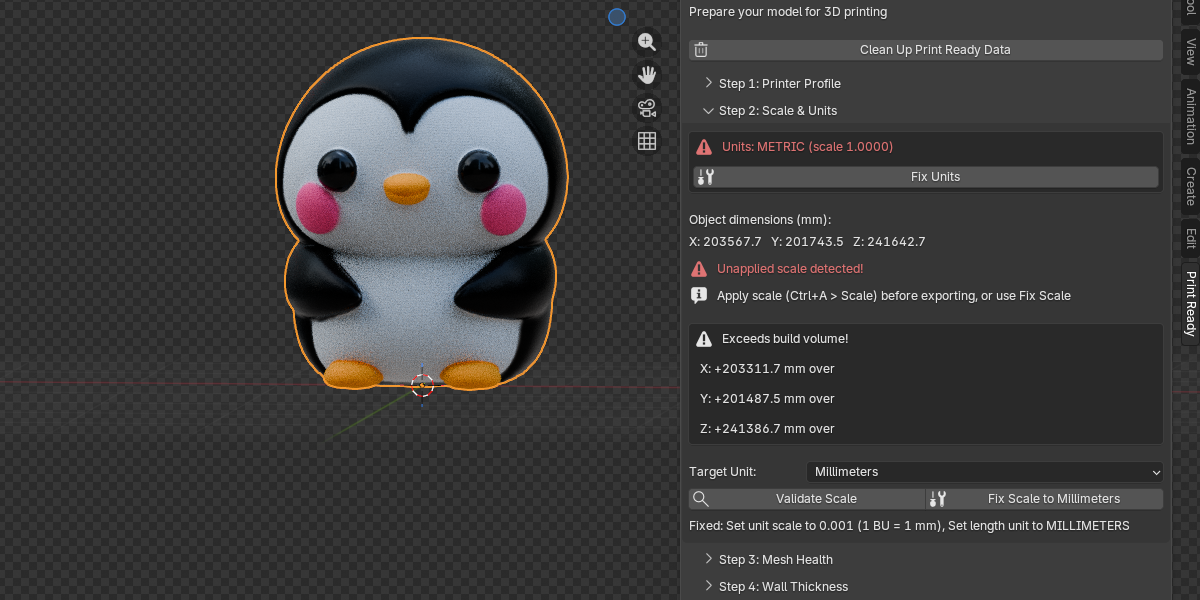
Blender's default unit setup is incompatible with 3D printing. 3DQuads Print Ready detects the problem and fixes it in one click — so what you see in Blender is what the slicer receives.

  • Checks scene unit system, scale factor, and length unit setting
  • Live object dimensions displayed in mm, cm, or inches
  • Detects unapplied scale transforms that silently corrupt exports
  • Fit check — instant visual confirmation whether your model fits inside the selected printer's build volume
  • One-click fix — sets METRIC units, scale 0.001, applies object scale
  • Rotation hints when a simple 90° flip would make the model fit
Print Ready panel overview
3
Mesh Health

Find and Fix Every Mesh Problem Instantly

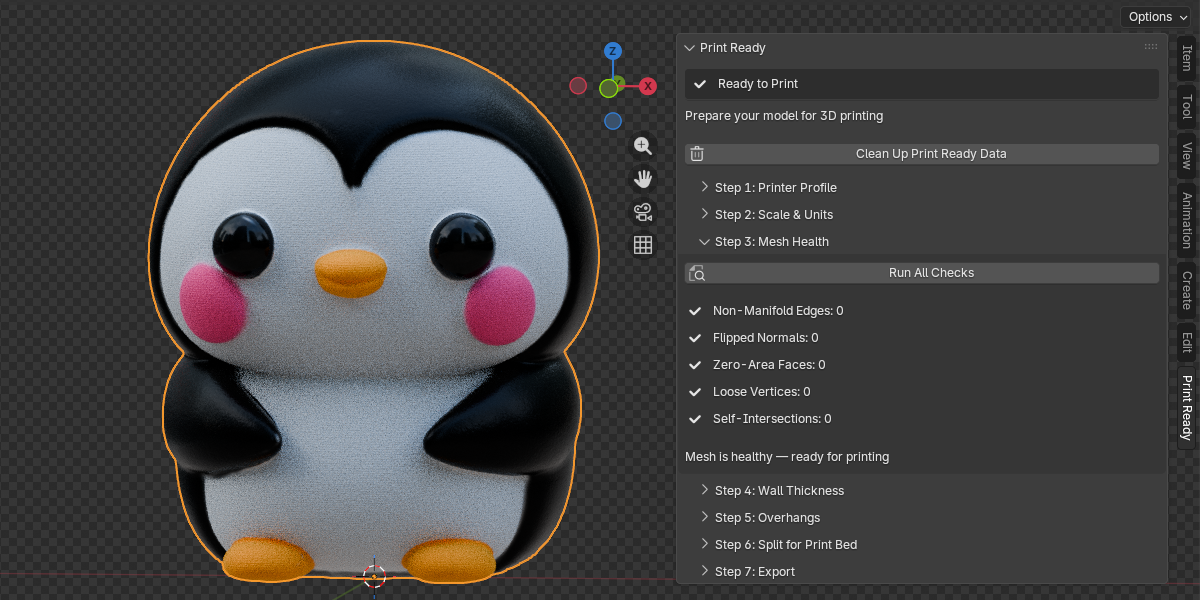
A bad mesh produces slicer errors, failed prints, and missing walls. 3DQuads Print Ready runs five targeted checks and offers one-click fixes for each — individually or all at once.

  • Non-manifold edges — edges that cause open holes in the print
  • Flipped normals — faces pointing the wrong way, confusing slicers
  • Zero-area faces — degenerate geometry that breaks solidness
  • Loose vertices — disconnected points that add noise to exports
  • Self-intersections — overlapping geometry that creates impossible walls
  • Per-issue Fix buttons, plus Fix All for one-click repair
Print Ready panel overview
4
Wall Thickness

See Thin Walls Before the Printer Does

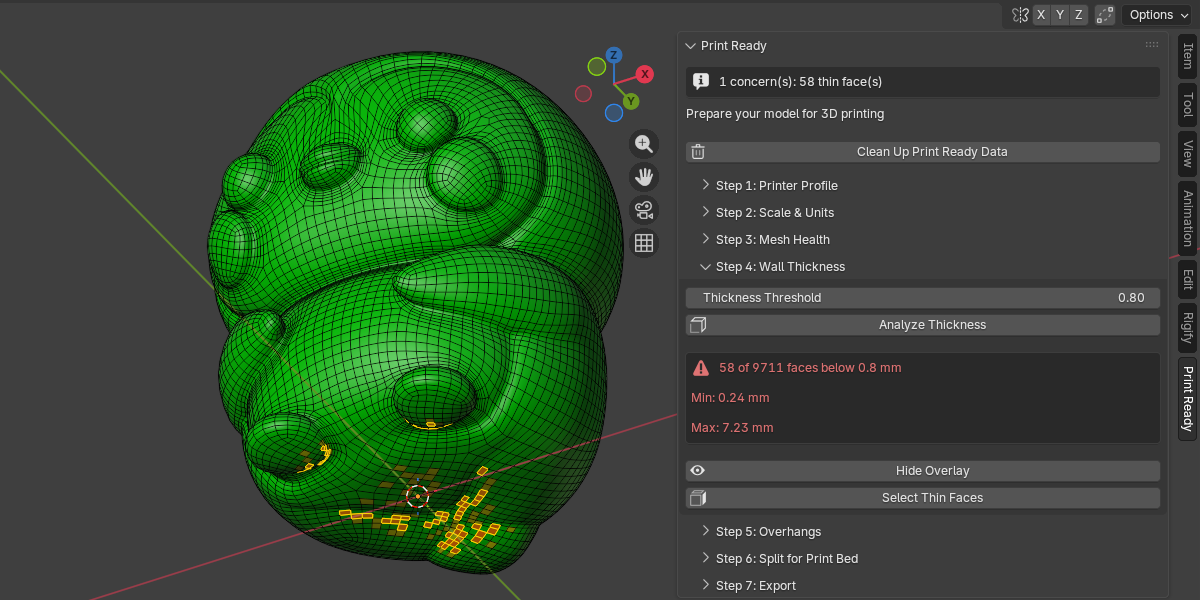
Walls that are too thin for your nozzle diameter simply won't print — or will collapse. 3DQuads Print Ready visualizes exactly where those areas are with a live heatmap overlay on your model.

  • Ray-cast analysis measures real wall thickness across every face
  • Threshold auto-set from your printer's minimum wall thickness spec
  • Color heatmap: Red = too thin  ·  Yellow = marginal  ·  Green = safe
  • Shows face count, minimum, and maximum thickness found
  • Select Thin Faces — enters Edit Mode with problem faces selected for manual repair
  • Toggle overlay on/off without re-running the analysis
Print Ready panel overview
5
Overhang Detection

Know Exactly Where You Need Supports

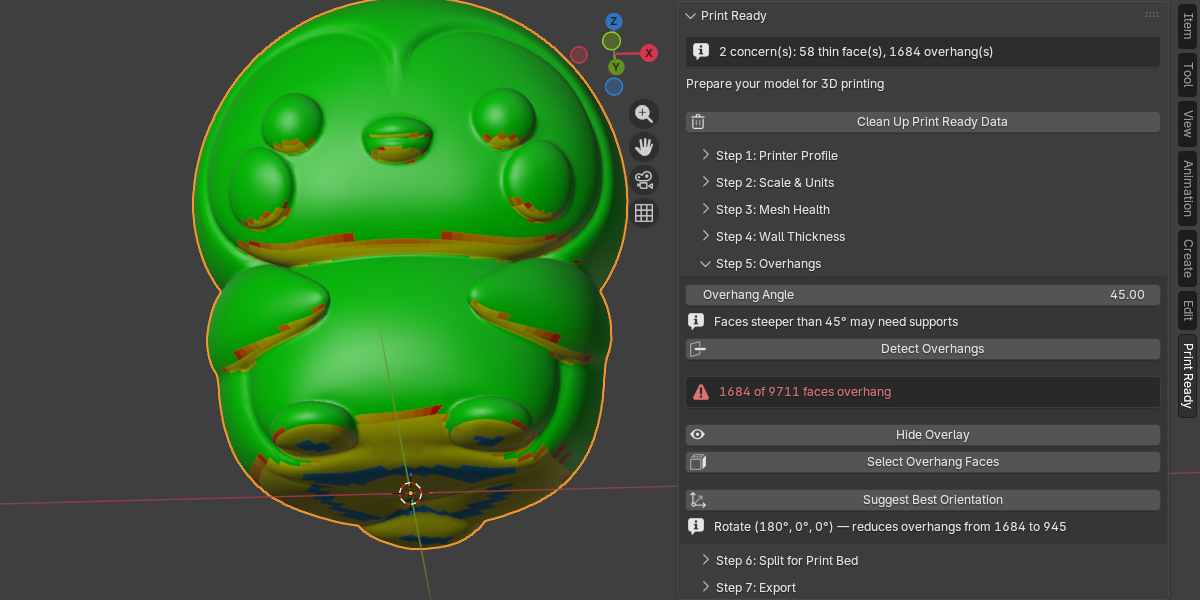
Overhanging faces that exceed your printer's capability require support material — which means more filament, more cleanup, and worse surface quality. 3DQuads Print Ready maps them and helps you reduce them.

  • Configurable angle threshold (default 45°) — matches your slicer setting
  • World-space normal calculation — works correctly even on rotated objects
  • Color overlay: Green = safe, Yellow = mild, Red = severe, Blue = build plate
  • Select Overhang Faces for manual review and editing
  • Orientation Optimizer — tests 6 canonical rotations and recommends the one with fewest overhangs
  • Shows the exact improvement: "Reduces overhangs from 143 to 12"
Print Ready panel overview
6
Split for Print Bed

Print Anything — Even If It's Bigger Than Your Printer

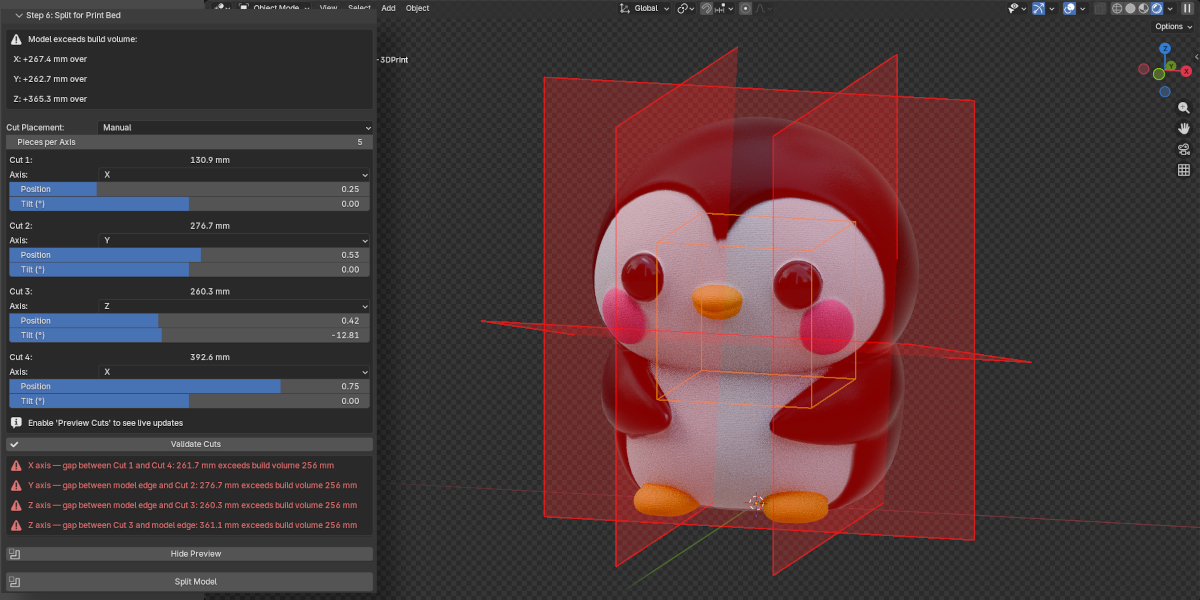
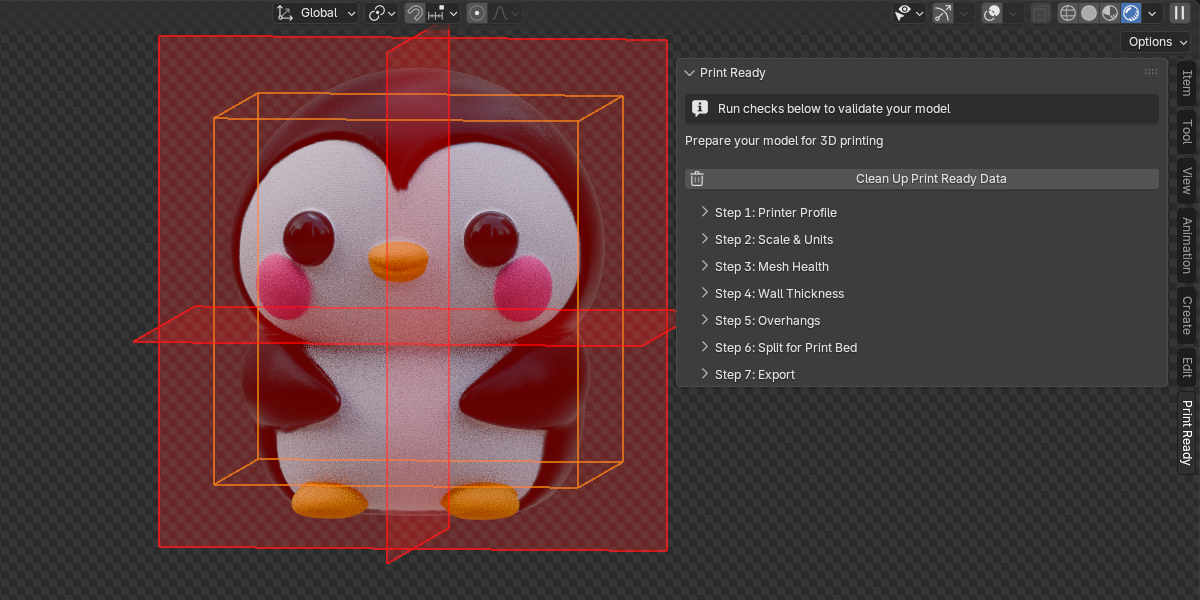
When your model is too large for the build volume, 3DQuads Print Ready splits it into watertight pieces with flat mating faces. Define cuts automatically or fully manually — with live viewport previews and built-in validation before you commit.

  • Live preview overlay — orange build volume box and red cut planes drawn directly in the viewport, with no objects added to the Outliner
  • Real-time slider updates — drag any position or tilt slider and the cut planes move instantly, no re-click required
  • AUTO mode — detects which axes overflow and calculates the minimum cuts needed
  • MANUAL mode — set each cut independently: choose its axis (X, Y or Z), exact position along the model, and optional tilt angle
  • Validate Cuts — confirm every resulting piece fits the build volume before splitting, with per-cut error reporting
  • Undo Split — one click restores the original model at any time
Print Ready panel overview
7
Export

One Click From Blender to Slicer

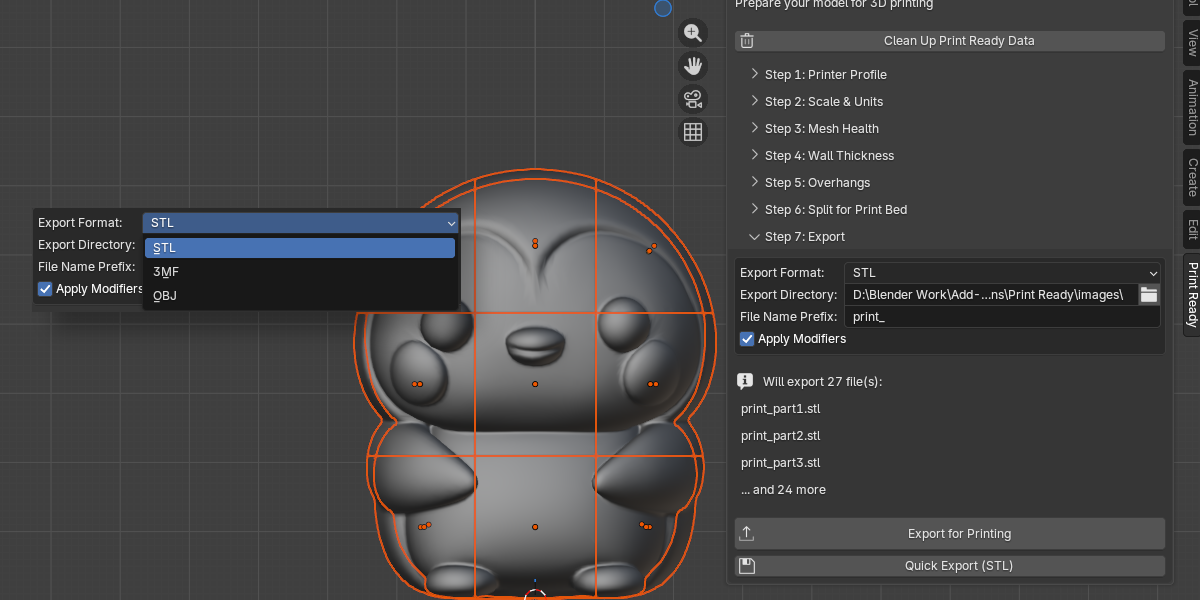
The final step handles everything: modifier application, scale correction, multi-part naming, and directory management — so your slicer receives clean, correctly-scaled files every time.

  • Export to STL, 3MF, or OBJ — your choice per session
  • Automatically exports all split parts as separate numbered files
  • Applies modifiers on export without affecting your scene
  • Scale correction ensures exported geometry is always in millimeters
  • Configurable file name prefix (e.g. print_mymodel_part1.stl)
  • Quick Export — one click to STL in the same folder as your .blend file
Print Ready panel overview
Comparison

3DQuads Print Ready vs Blender's Built-In Tools

Blender ships with a basic 3D Print Toolbox. Here's what you're missing without 3DQuads Print Ready.

Feature 3DQuads Print Ready Blender 3D Print Toolbox
Guided step-by-step workflow
Printer presets with real specs 13+ presets
Build volume fit check
Scale & units auto-fix (1 click)
Mesh health checks 5 checks + auto-fix Partial basic checks only
Wall thickness analysis + heatmap
Overhang detection + overlay
Orientation optimizer
Model splitter (oversized prints)
Split preview (build vol + cut planes)
Export pipeline (STL / 3MF / OBJ) with scale correction Partial STL only, no scale fix
Multi-part export (split models)
Supported Printers

Built for the printers you actually use

Real specs. Real build volumes. No guesswork.

🖨️
Bambu Lab P1S
FDM  ·  256³ mm
🖨️
Bambu Lab X1 Carbon
FDM  ·  256³ mm
🖨️
Bambu Lab A1
FDM  ·  256³ mm
🖨️
Prusa MK4S
FDM  ·  250×210×220 mm
🖨️
Prusa Mini+
FDM  ·  180³ mm
🖨️
Creality Ender 3 V3
FDM  ·  220×220×250 mm
🖨️
Creality K1 Max
FDM  ·  300³ mm
🔵
Elegoo Mars 4 Ultra
Resin  ·  153×78×165 mm
🔵
Elegoo Saturn 4 Ultra
Resin  ·  219×123×220 mm
🖨️
Anycubic Kobra 3
FDM  ·  250×250×260 mm
🖨️
Artillery Sidewinder X4 Plus
FDM  ·  300×300×400 mm
🔧
Voron 2.4 350mm
FDM  ·  350³ mm
⚙️
Custom Printer
Any specs you need
Installation

Up and running in under a minute

1

Download

Download print_ready-1.0.0.zip from your Superhive account after purchase.

2

Open Preferences

In Blender, go to Edit > Preferences > Extensions.

3

Install from Disk

Click Install from Disk and select the downloaded .zip file.

4

Open the Panel

Press N in the 3D Viewport and click the Print Ready tab. Done.

Blender 4.5 or later
Windows, macOS, Linux
No external packages
GPL-3.0 licensed

Ready to print? Get 3DQuads Print Ready.

Stop fighting your tools. Start making great prints. One extension, the entire workflow.