Overview
A professional Blender addon for generating parametric cabinet geometry
Craftsman Cabinet Creator is a powerful Blender extension that enables you to create highly customizable cabinet geometry using Geometry Nodes. With an intuitive sidebar panel interface, you can generate, customize, and finalize cabinet designs with real-time parameter updates.
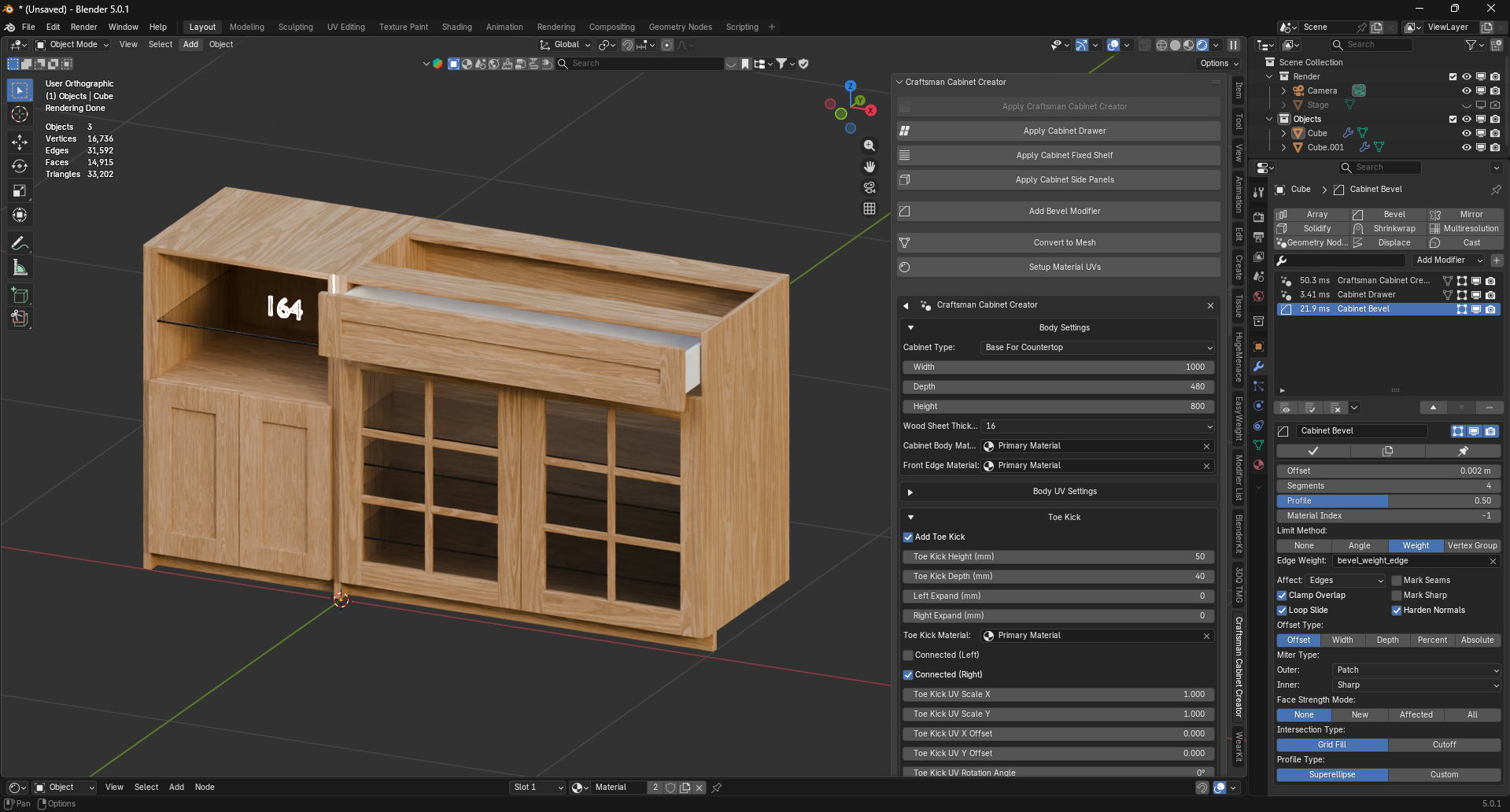
Features
Everything you need for professional cabinet generation
Installation
Get started in minutes with these simple steps
.zip package containing all required files.Installation Steps
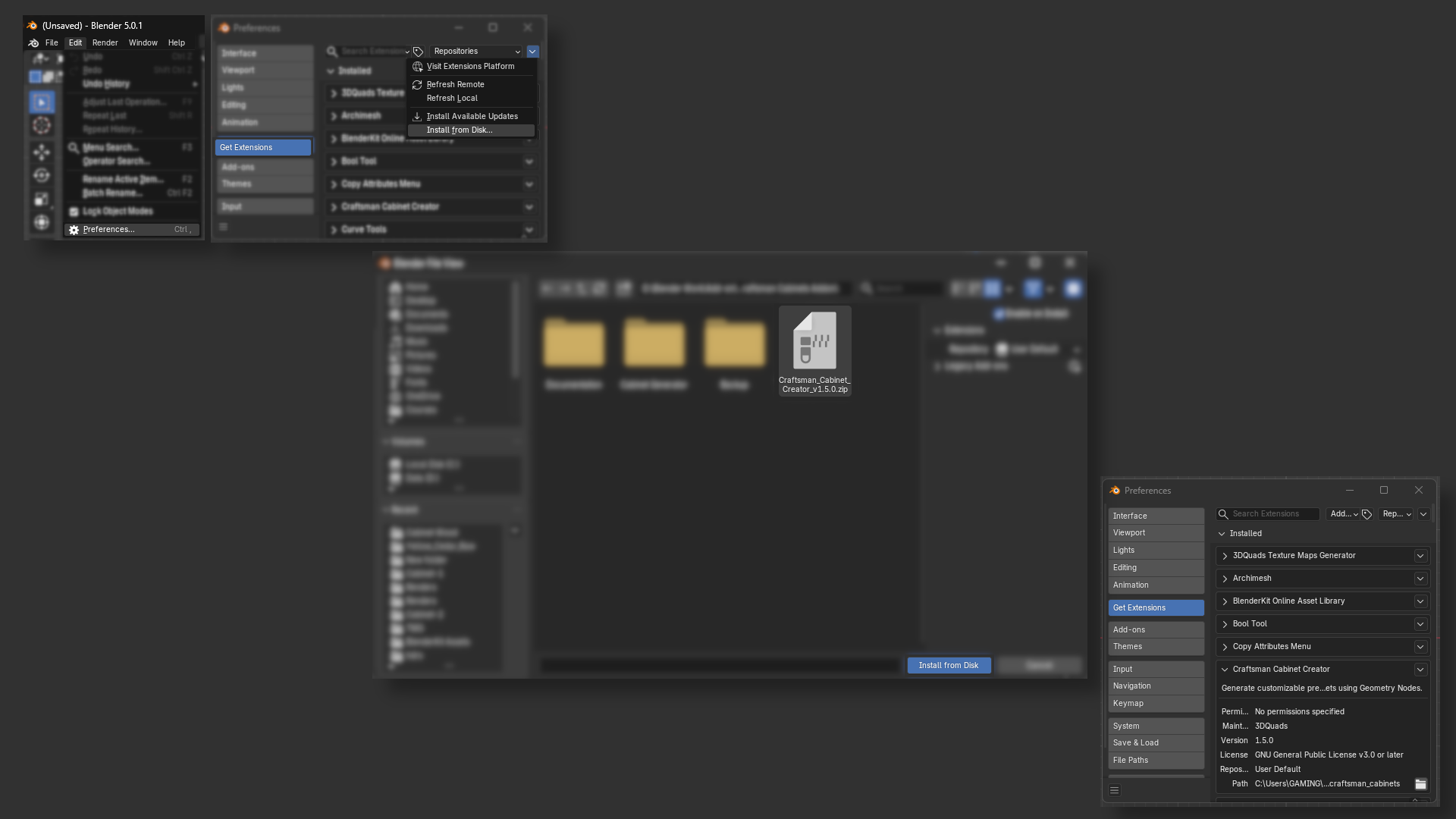
craftsman_cabinets.zip extension package file, then click "Install from Disk".Package Contents
The extension zip package contains:
| File | Description |
|---|---|
__init__.py |
Main extension code |
Cabinet Generator-Blender 5.blend |
Geometry node trees |
blender_manifest.toml |
Extension manifest |
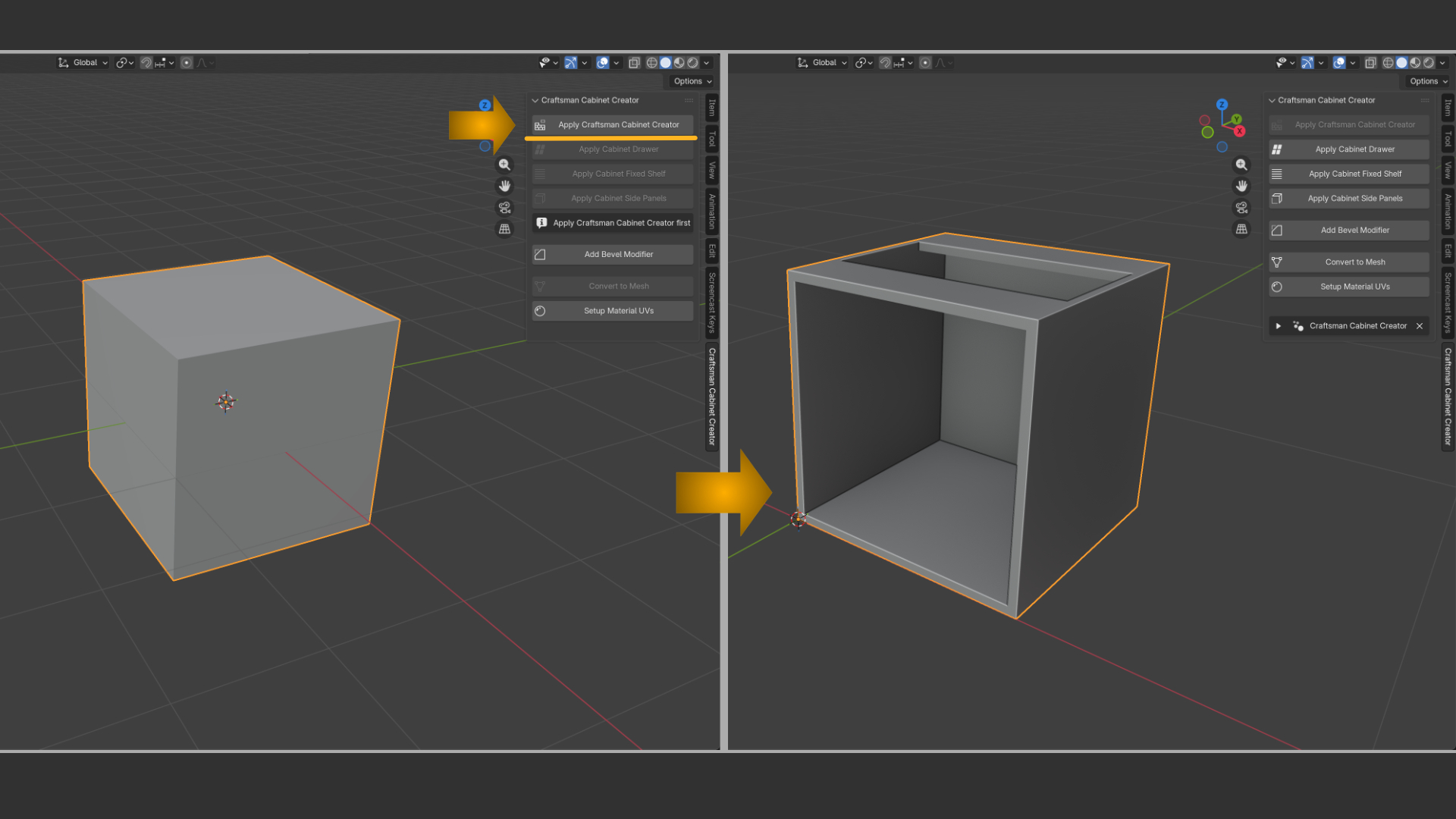
Quick Start
Create your first cabinet in under 2 minutes
Usage Guide
Detailed guide for getting the most out of the addon
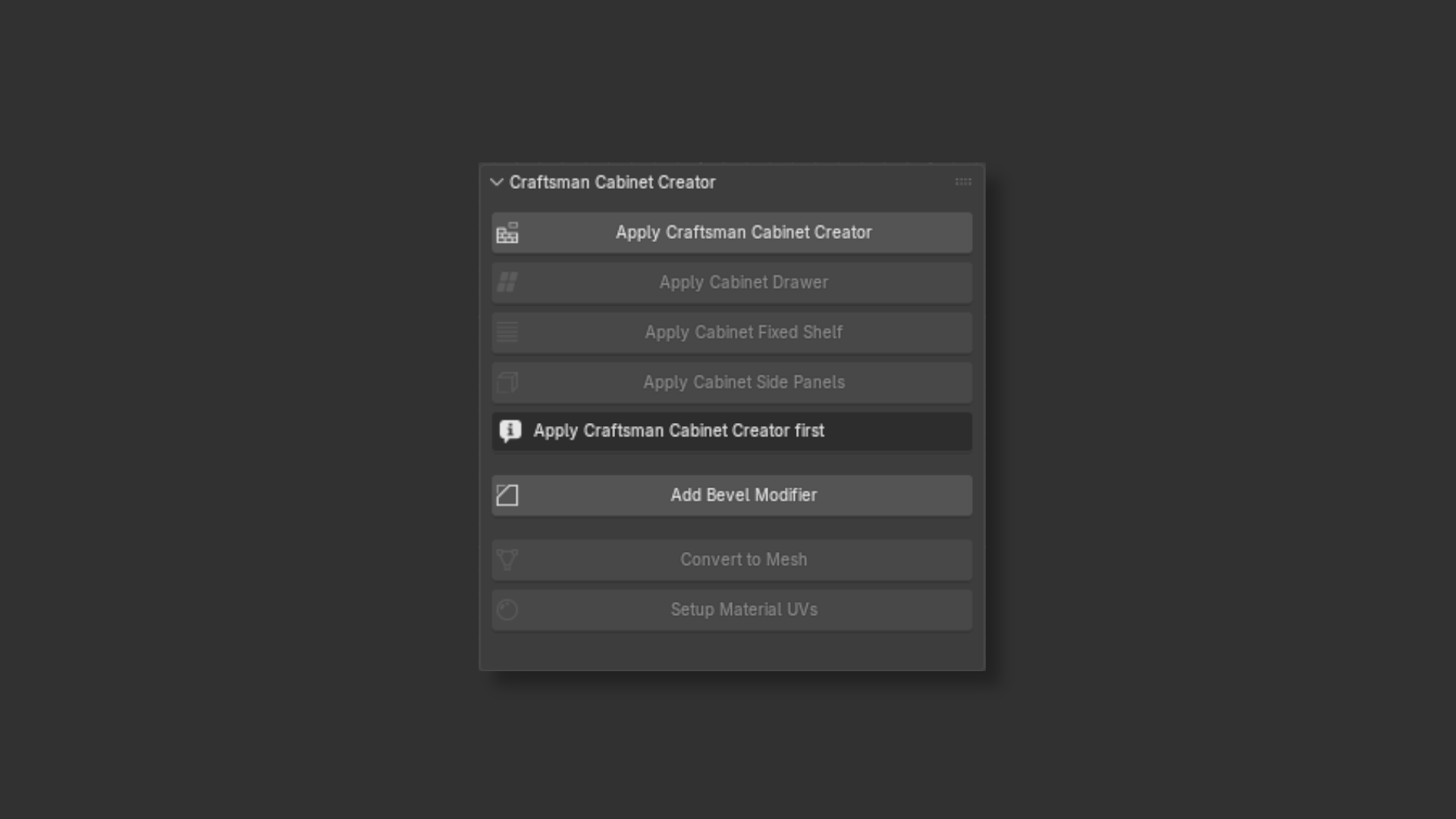
Panel Layout
The addon panel is organized into clear sections:
Parameter Interface
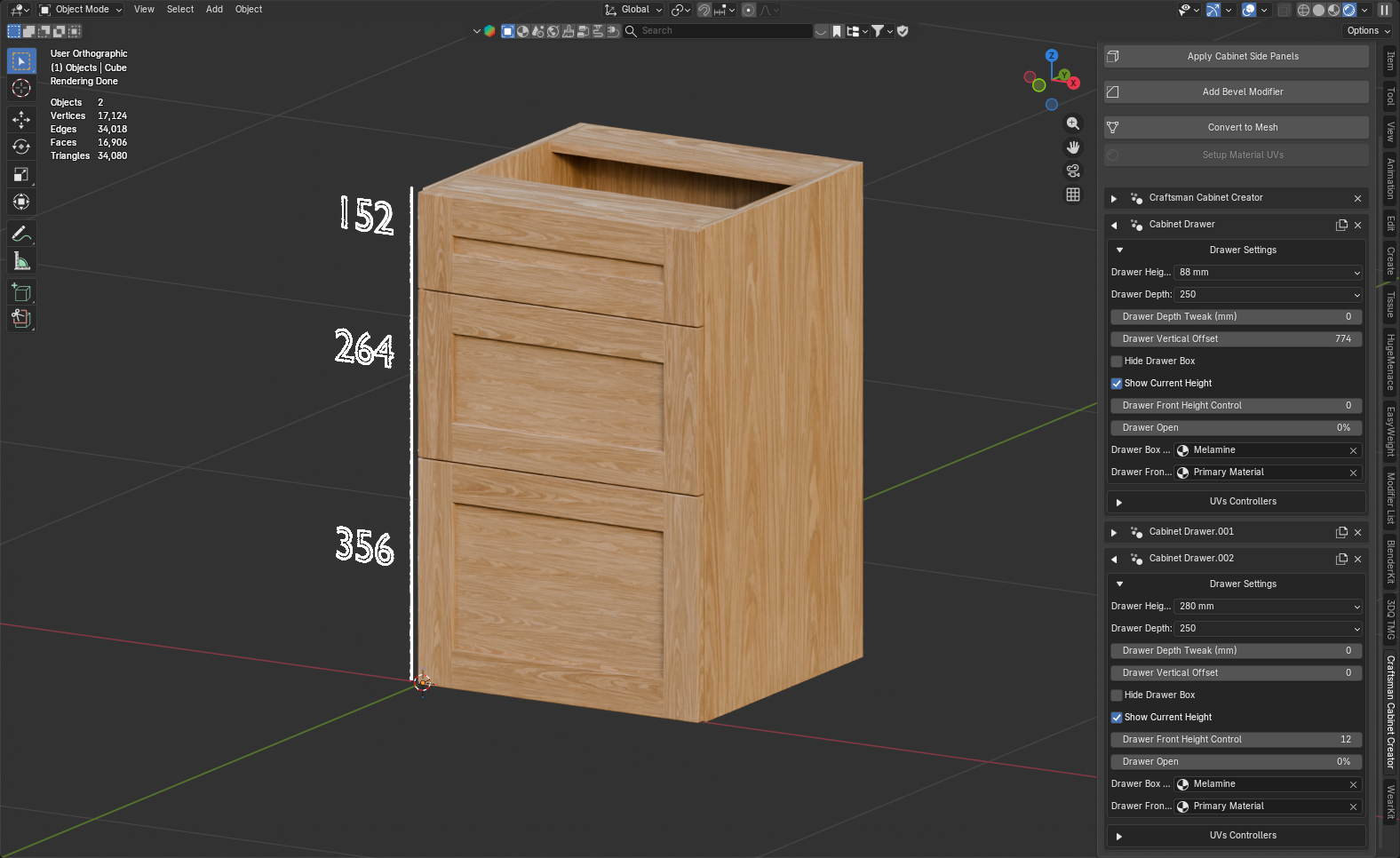
The parameter interface uses a three-level collapsible hierarchy:
- Modifier Level - Top-level container for each modifier (Craftsman Cabinet Creator, Cabinet Drawer, etc.)
- Panel Level - Organized groups within each modifier (Base Settings, Toe Kick, etc.)
- Parameter Level - Individual controls (Width, Height, Depth, etc.)
Working with Multiple Components
You can add multiple drawers and fixed shelves to a single cabinet:
- Click the duplicate icon (📋) next to a drawer or shelf to create a copy with inherited parameters
- Each copy gets a unique vertical offset for positioning
- Delete individual components using the X button
Operators
Complete reference for all available operators
Bevel Modifier Settings
The bevel modifier is added with optimized default settings:
| Setting | Value | Purpose |
|---|---|---|
| Offset Type | Offset | Consistent edge width |
| Width | 2mm (0.002m) | Subtle, realistic edge break |
| Segments | 4 | Smooth curves without excessive geometry |
| Limit Method | Weight | Control via bevel weights from geometry nodes |
| Harden Normals | Enabled | Clean shading on beveled edges |
| Miter Outer | Patch | Clean corner intersections |
Parameters
Understanding the parameter types and controls
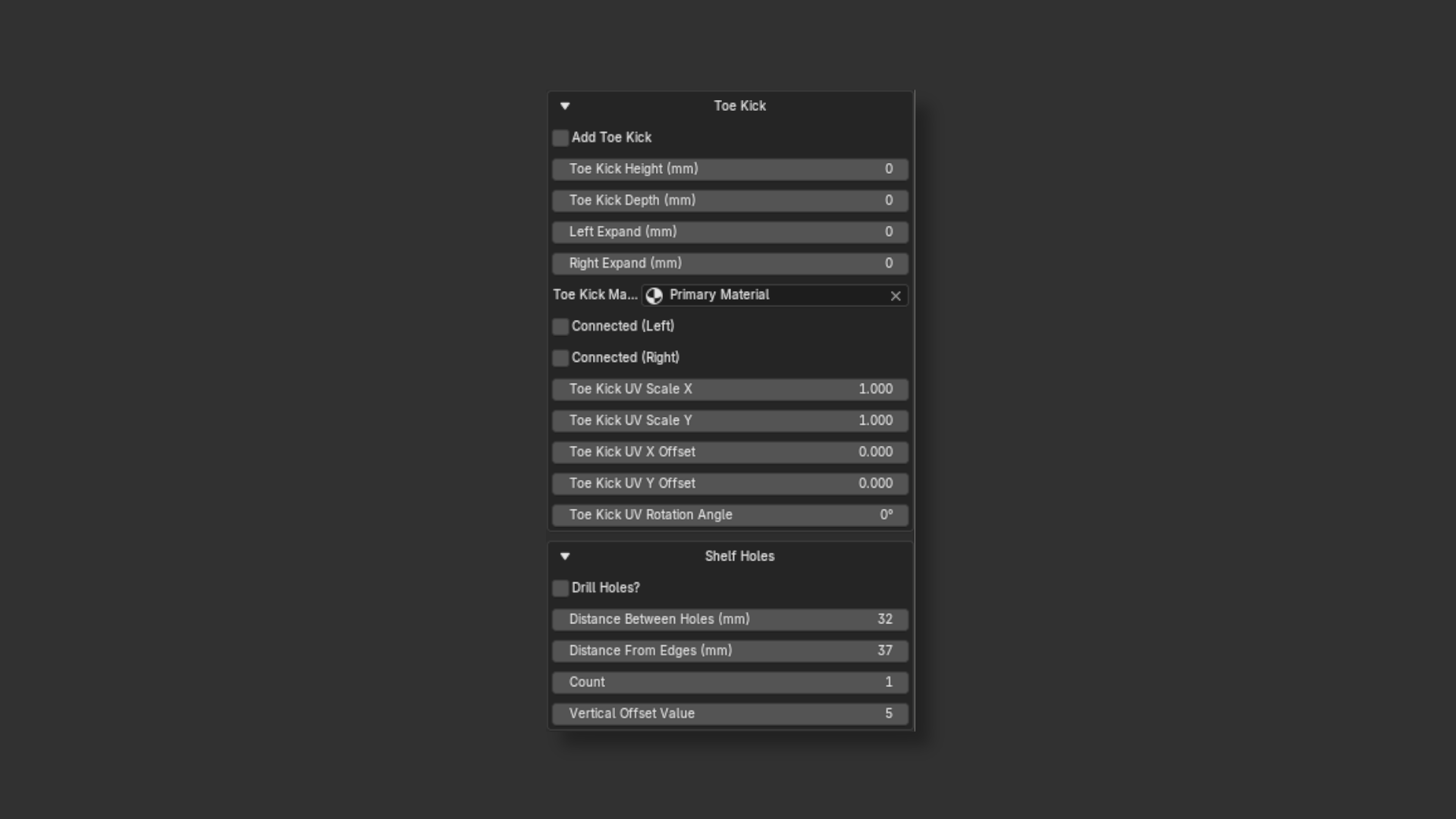
Supported Parameter Types
The addon supports all common Geometry Nodes parameter types:
Real-Time Updates
All parameter changes update the viewport geometry immediately. The addon supports:
- Undo/Redo - All parameter changes can be undone with Ctrl+Z
- State Persistence - Panel expand/collapse states are saved per session
- Multi-Object Support - Each object has independent parameter values
Workflow
Recommended workflow for creating cabinets
Modifier Stack Order
Modifiers are automatically ordered for correct evaluation:
| Position | Modifier | Purpose |
|---|---|---|
| 1 (Top) | Craftsman Cabinet Creator | Base cabinet geometry |
| 2 | Cabinet Drawer(s) | Drawer components (reads base attributes) |
| 3 | Cabinet Fixed Shelf(s) | Shelf components |
| 4 | Cabinet Side Panels | Side panel decoration |
| 5 (Bottom) | Cabinet Bevel | Edge finishing (applied last) |
Troubleshooting
Solutions to common issues
Solutions:
- Press N to toggle the sidebar visibility
- Check that the addon is enabled in Edit → Preferences → Add-ons
- Open System Console (Window → Toggle System Console) to check for error messages
- Verify both
__init__.pyand the.blendfile are in the same folder
Cause: The geometry node file is missing or renamed.
Solution:
- Ensure
Cabinet Generator-Blender 5.blendis in the same folder as__init__.py - Do not rename the .blend file - the exact name is required
- Re-download the addon files if the .blend file is corrupted
Cause: This is expected behavior - Cabinet Drawer requires the base Cabinet Generator.
Solution:
- First click "Apply Craftsman Cabinet Creator" to add the base modifier
- The drawer button will become enabled once the generator exists
Solutions:
- Click the ▼ triangle icon next to the modifier name to expand it
- Click panel names (e.g., "Base Settings") to expand nested sections
- Ensure the modifier has a valid node group assigned (check modifiers panel)
Solution: Select a mesh object in the viewport by clicking on it. The addon requires an active selection to work.
Cause: You've selected a non-mesh object (Camera, Light, Empty, etc.).
Solution: Select a mesh object. Add a cube or other mesh if needed (Shift+A → Mesh).
Solutions:
- Ensure at least one cabinet modifier exists on the object
- Check that the button is enabled (not greyed out)
- Open System Console to check for error messages
- Try applying modifiers manually in the Properties panel to identify issues
Solution: Click "Setup Material UVs" before converting to mesh. This connects the geometry node UV attributes to your material's texture coordinate inputs.
Frequently Asked Questions
Yes! Click "Apply Cabinet Drawer" multiple times, or use the duplicate button next to an existing drawer. Each drawer can have independent parameters and vertical positioning.
Yes, open Cabinet Generator-Blender 5.blend in Blender to edit the geometry node trees directly. Changes will be reflected when the addon loads the node trees. The node groups must keep their exact names: "Cabinet Generator", "Cabinet Drawer", "Cabinet Fixed Shelf", and "Cabinet Side Panels".
No, this addon requires Blender 4.5 LTS or Blender 5.0+. Earlier versions have different geometry node interfaces that are not compatible.
Yes, the addon is licensed under GPL-3.0-or-later. You can use the generated geometry in any project, including commercial work. If you modify and redistribute the addon itself, you must keep it open source under the same license.
Linking allows the node trees to be updated in the external .blend file without modifying the Python code. This makes it easier to improve the geometry generation logic and provides a cleaner separation of concerns.
Only cabinet-related modifiers (those with "Craftsman" or "Cabinet" in their name) are applied. All other modifiers (Subdivision Surface, Array, Mirror, etc.) remain in the stack and continue working normally.
Technical Details
For developers and advanced users
Architecture
- Single-file addon - All Python code in
__init__.py(~1100 lines) - External node trees - Geometry nodes linked from
.blendfile (not embedded) - API compatibility - Handles differences between Blender 4.5 and 5.0+ APIs
Class Hierarchy
Required Node Group Names
The .blend file must contain these exact node group names:
Cabinet GeneratorCabinet DrawerCabinet Fixed ShelfCabinet Side Panels
Modifier Detection
The addon identifies its own modifiers by checking if the modifier name contains "Craftsman" or "Cabinet". This allows for proper handling during conversion and deletion operations.
Panel State Storage
Panel expand/collapse states are stored as a JSON string in WindowManager.cabinet_panel_states. This persists for the current Blender session but resets when Blender is closed.